
How to Fix Slow Internet on Windows 11 (Do This First!)
Slow internet on Windows 11 can make even simple tasks painful — videos buffer, downloads crawl, and websites take forever to load. The good news is that most slow‑internet issues come from local Windows settings, not your ISP. In this guide, I’ll walk you through the fastest and most effective fixes to speed up your connection.
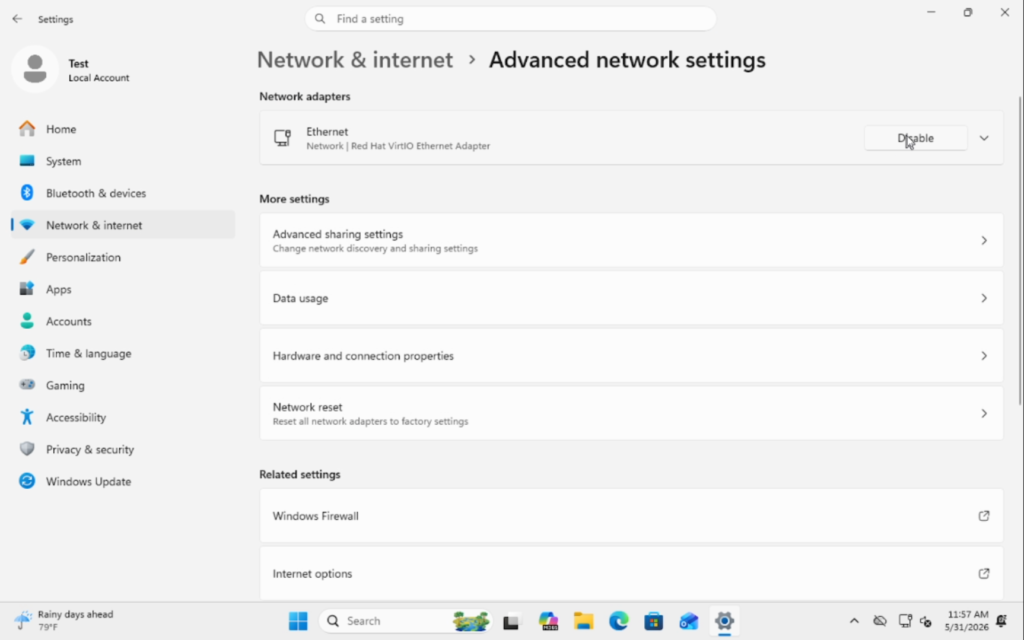
1. Restart Your Network Adapter (Fastest First Fix)
Restarting your network adapter forces Windows to reload the driver and clear temporary issues.
Steps
- Press Win + X
- Select Device Manager
- Expand Network adapters
- Right‑click your Wi‑Fi or Ethernet adapter
- Select Disable device
- Wait 5 seconds
- Select Enable device
2. Flush DNS and Reset TCP/IP
Corrupted DNS cache or TCP/IP settings can slow down your connection dramatically.
Open Command Prompt as Administrator
Press Win + R, type cmd, then press Ctrl + Shift + Enter.
Run These Commands
Flush DNS:
ipconfig /flushdnsReset IP:
netsh int resetReset Winsock:
netsh winsock reset3. Clear Temporary Network Files
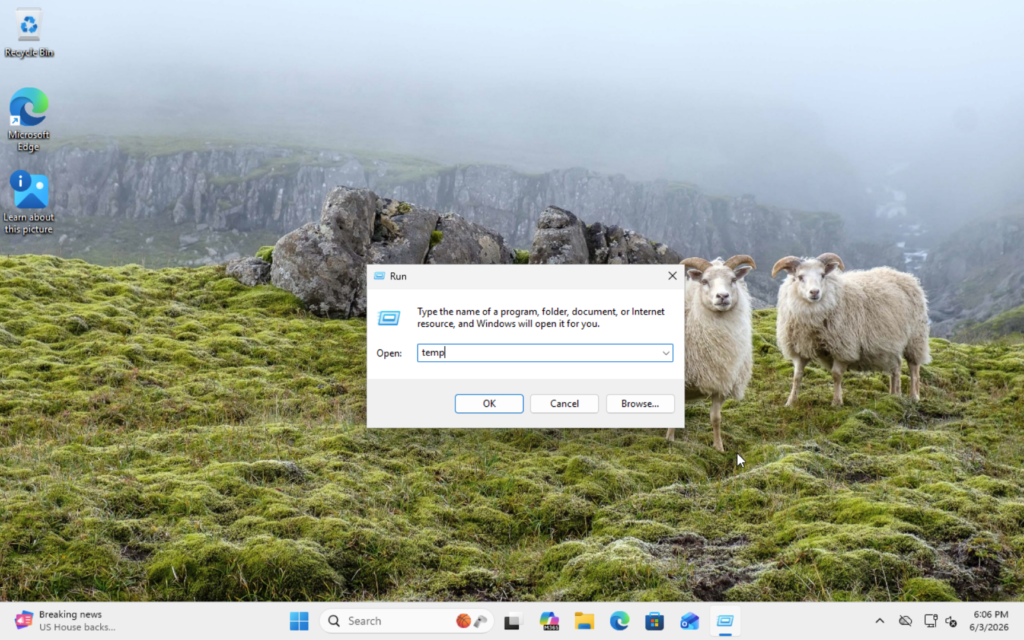
Windows stores temporary network data that can become corrupted.
Steps
- Press Win + R
- Type: temp
- Delete everything
- Repeat with: %temp%
4. Disable Metered Connection
If Windows thinks your connection is metered, it will throttle background activity.
Steps
- Open Settings
- Go to Network & Internet
- Select Wi‑Fi or Ethernet
- Click your network
- Turn Metered connection OFF
5. Update Your Network Drivers
Outdated drivers can cause slow speeds or dropped connections.
Steps
- Press Win + X
- Select Device Manager
- Expand Network adapters
- Right‑click your adapter
- Select Update driver
- Choose Search automatically
6. Disable Background Apps Using Bandwidth
Windows 11 apps can quietly use your internet in the background.
Steps
- Open Settings
- Go to Apps → Installed apps
- Click the three dots on apps you don’t need
- Select Advanced options
- Set Background app permissions to Never
7. Run the Windows Network Troubleshooter
Windows has a built‑in tool that can automatically detect issues.
Steps
- Open Settings
- Go to System → Troubleshoot → Other troubleshooters
- Run Internet Connections
- Run Network Adapter
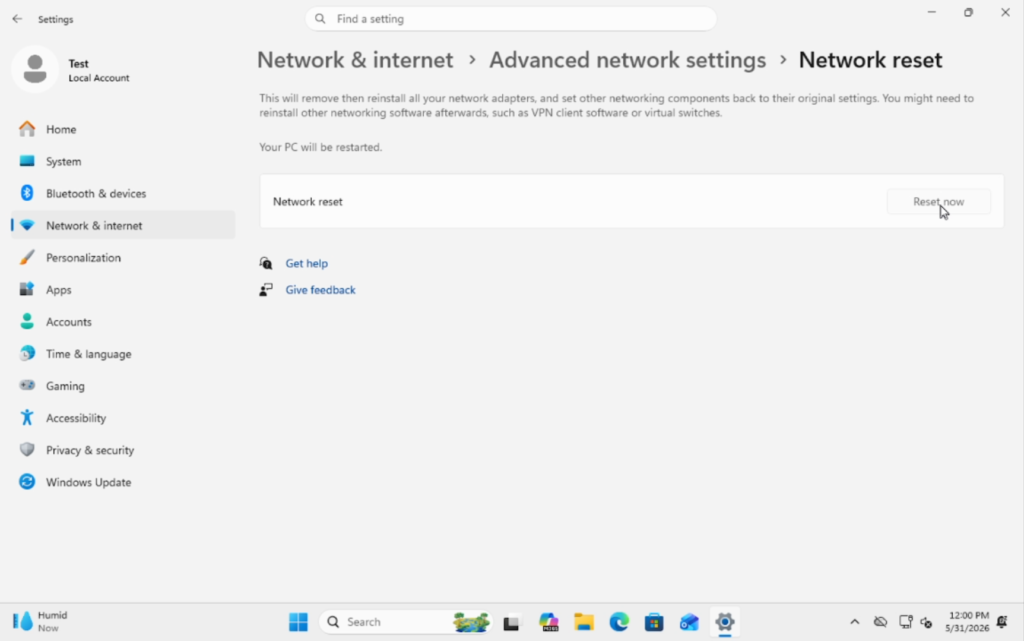
8. Reset Network Settings (Last Resort)
If nothing else works, reset all network components.
Steps
- Open Settings
- Go to Network & Internet
- Scroll to Advanced network settings
- Click Network reset
- Select Reset now
Download the Free Windows Quick‑Fix Starter Guide
If you want a simple, fast, and reliable way to fix the most common Windows problems, grab my free Windows Quick‑Fix Starter Guide. It includes the exact repair commands and maintenance steps every Windows user should know — all in one clean, printable PDF.
Inside the guide, you’ll get:
- Essential repair commands
- Network repair tools
- Fast performance boosts
- A monthly maintenance checklist
This is the same toolkit I use in my troubleshooting videos — perfect for beginners, IT students, and home lab users.