
Fix Windows Update Error 0x800f081f on Windows 11: Fast Step-by-Step Guide
Struggling with Windows Update error 0x800f081f on Windows 11? This guide walks you through the exact commands to repair corrupted system files and restore Windows Update in under 10 minutes.
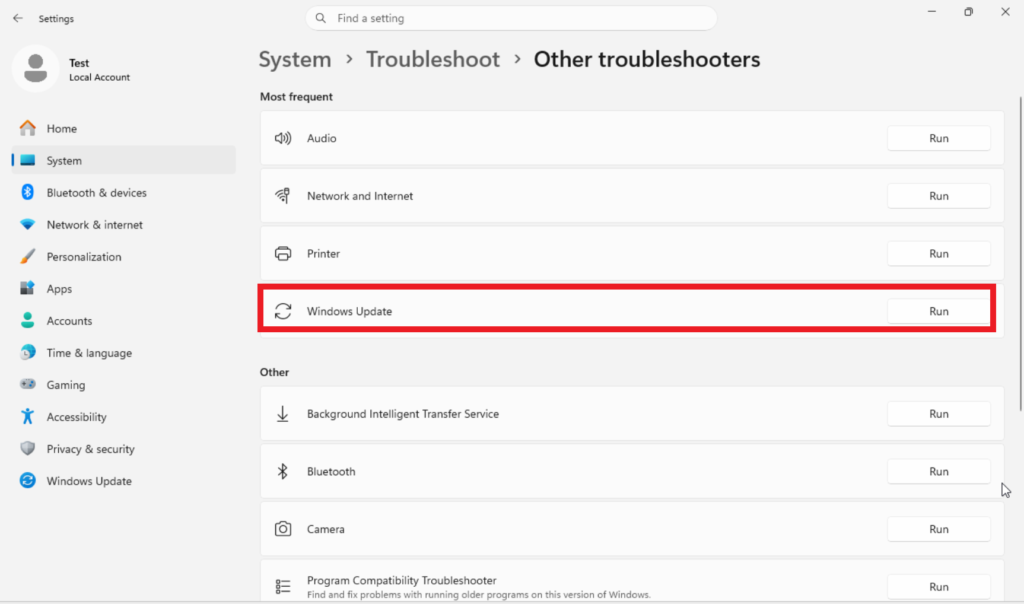
Fix 1: Run the Windows Update Troubleshooter
This tool automatically finds and repairs common update problems.
- Open Settings
- Select System
- Click Troubleshoot
- Choose Other troubleshooters
- Run Windows Update
- Apply any fixes it suggests
- Restart your PC
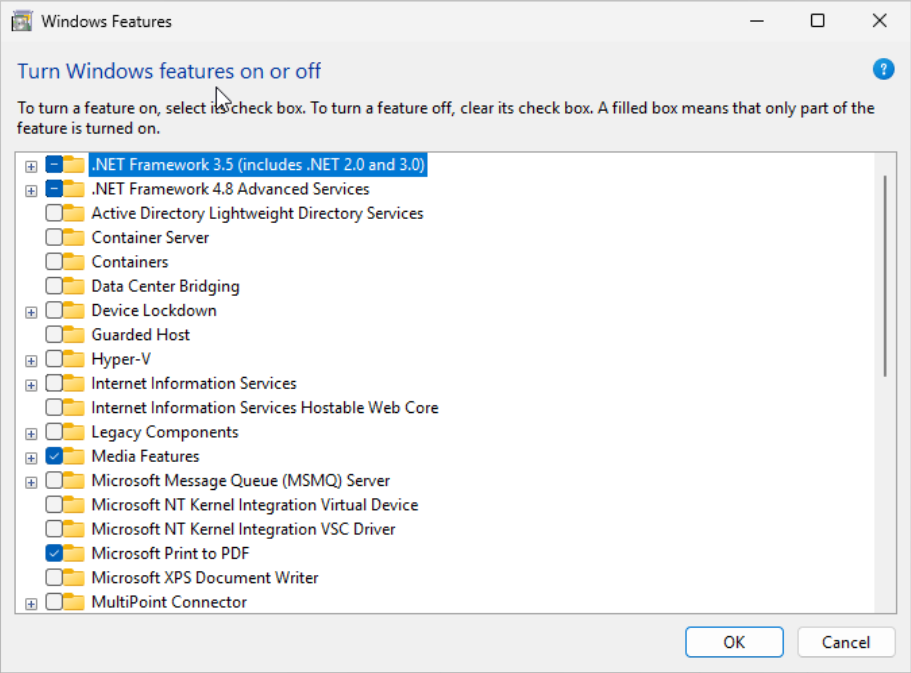
Fix 2: Enable .NET Framework 3.5
Many updates require .NET 3.5 to install correctly.
- Press Windows + R
- Type:
optionalfeatures - Check .NET Framework 3.5
- Click OK
- Let Windows download the files
- Restart your PC
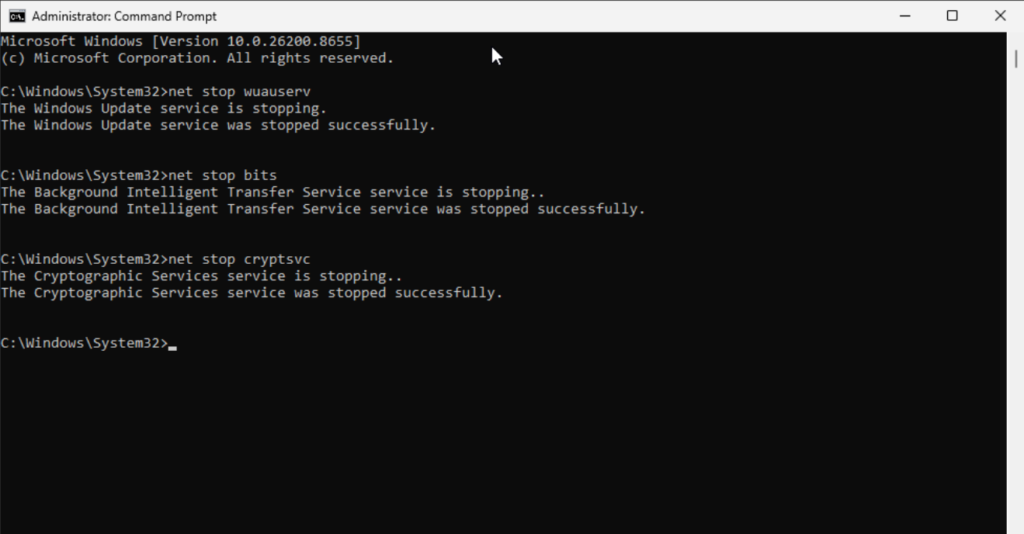
Section 3: Reset Windows Update Components via Command Line
If error 0x800f081f persists, corrupted Windows Update cache or services may be the cause. Resetting them clears the stuck state.
- In admin terminal, stop update services:
net stop wuauservnet stop bitsnet stop cryptsvc - Rename SoftwareDistribution and Catroot2 folders:
ren C:\Windows\SoftwareDistribution SoftwareDistribution.oldren C:\Windows\System32\catroot2 catroot2.old - Restart services:
net start wuauservnet start bitsnet start cryptsvc
Then check Windows Update.
Summary
You’ve now run the three core repairs for error 0x800f081f: SFC fixes system files, DISM restores the component store, and resetting Windows Update components clears stuck caches. Most users resolve the error within 15 minutes using these steps. If the error returns, deeper issues like disk errors or third-party antivirus interference may need investigation.
Did this fix work for you? Have a tip that I didn’t cover? Drop it in the comments below — I read every one.