CPU at 100%? Here’s Why and How to Fix It (Windows 10/11)
Your PC crawls to a halt while the CPU pegs at 100%, making even basic tasks feel impossible. In this guide, you’ll learn how to pinpoint the exact process causing the spike and apply proven fixes to restore normal performance — usually in under 15 minutes.
Section 1: Identify the Process Hogging Your CPU
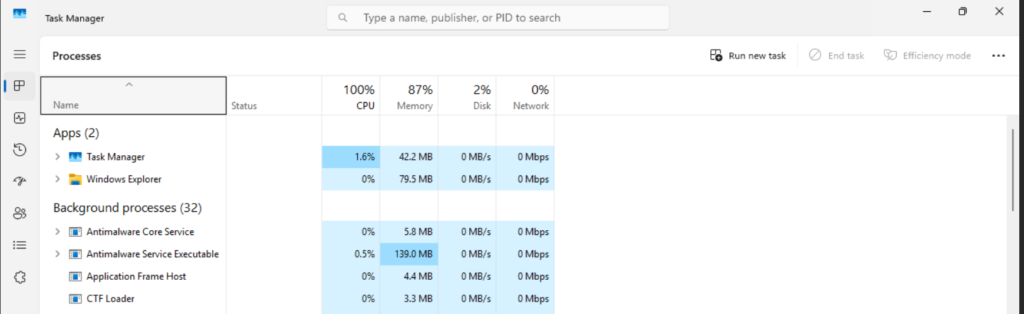
Before applying fixes, you must know exactly which process is responsible. Task Manager reveals the culprit so you can target the right solution instead of guessing.
- Press Ctrl + Shift + Esc to open Task Manager directly.
- Click the CPU column header to sort processes by usage (highest first).
- Note the top process name and its CPU percentage — this is your primary target.
Section 2: Fix Common High-CPU Culprits
Most 100% CPU spikes come from the same handful of culprits — Windows Update, outdated drivers, or background apps hogging resources. The good news? These three fixes resolve the majority of cases without any advanced tools.
- If you see Windows Update spiking in Task Manager, don’t fight it — let it run. Go to Settings → Windows Update, click Check for updates, and let it finish completely. Then restart your PC. The spike usually disappears on its own once the update is done.
- If a hardware-related process is the culprit — common ones include nvlddmkm.sys for Nvidia or igfxCUIService.exe for Intel graphics — the fix is updating your GPU or chipset drivers. Go directly to the manufacturer’s website (Nvidia, AMD, or Intel) rather than using Device Manager. Device Manager often installs outdated versions that don’t fully resolve the issue.
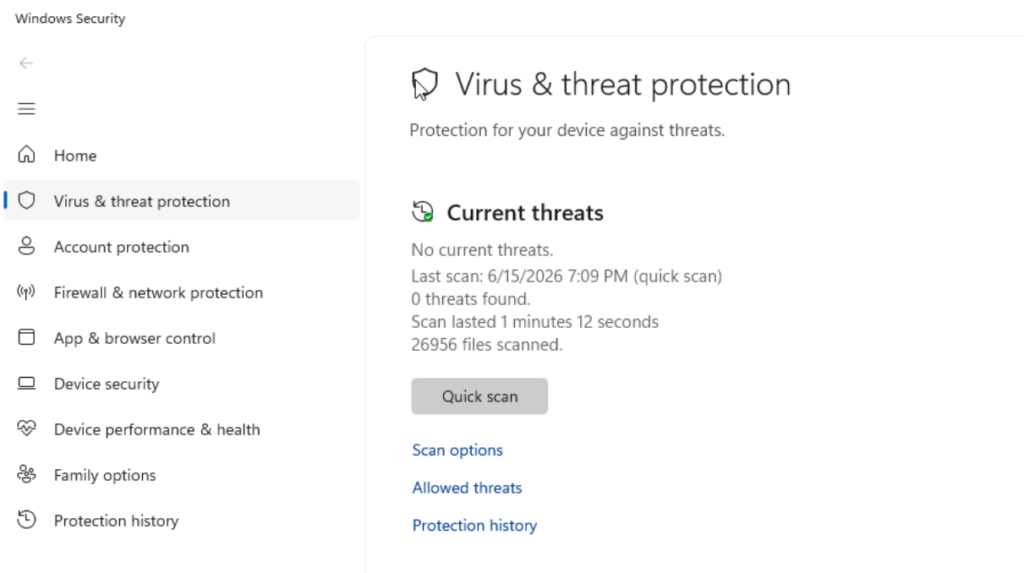
- Some malware disguises itself as a normal Windows process to avoid detection while draining your CPU. Open Windows Security, go to Virus & threat protection, and run a full scan. It’s free, takes just a few minutes, and rules out the worst-case scenario before you go digging any deeper.
Section 3: Advanced Fixes for Persistent High CPU
If the usual suspects check out, deeper system issues like corrupted files, bad power plans, or runaway startup apps may be to blame. These steps dig deeper.
- Open Command Prompt as admin and run:
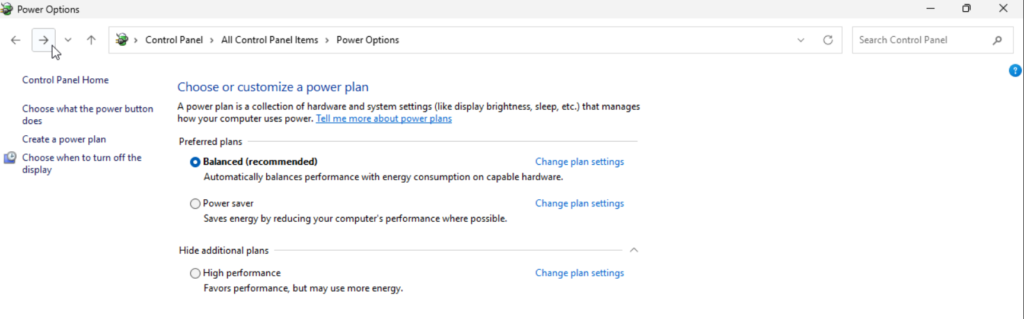
sfc /scannowfollowed byDISM /Online /Cleanup-Image /RestoreHealthto repair system files. - Switch power plan to Balanced (not High Performance) via Control Panel → Power Options — High Performance can lock CPU at max clock.
- Disable unnecessary startup apps in Task Manager → Startup tab; sort by Startup impact and disable High/Medium entries you don’t need.
Summary
You’ve now identified the exact process driving 100% CPU, applied targeted fixes for Windows Update, drivers, and malware, and run advanced repairs for system corruption and power plan issues. Most users resolve the problem in 10–15 minutes — no reinstall needed.
Did this fix work for you? Have a tip that I didn’t cover? Drop it in the comments below — I read every one.